
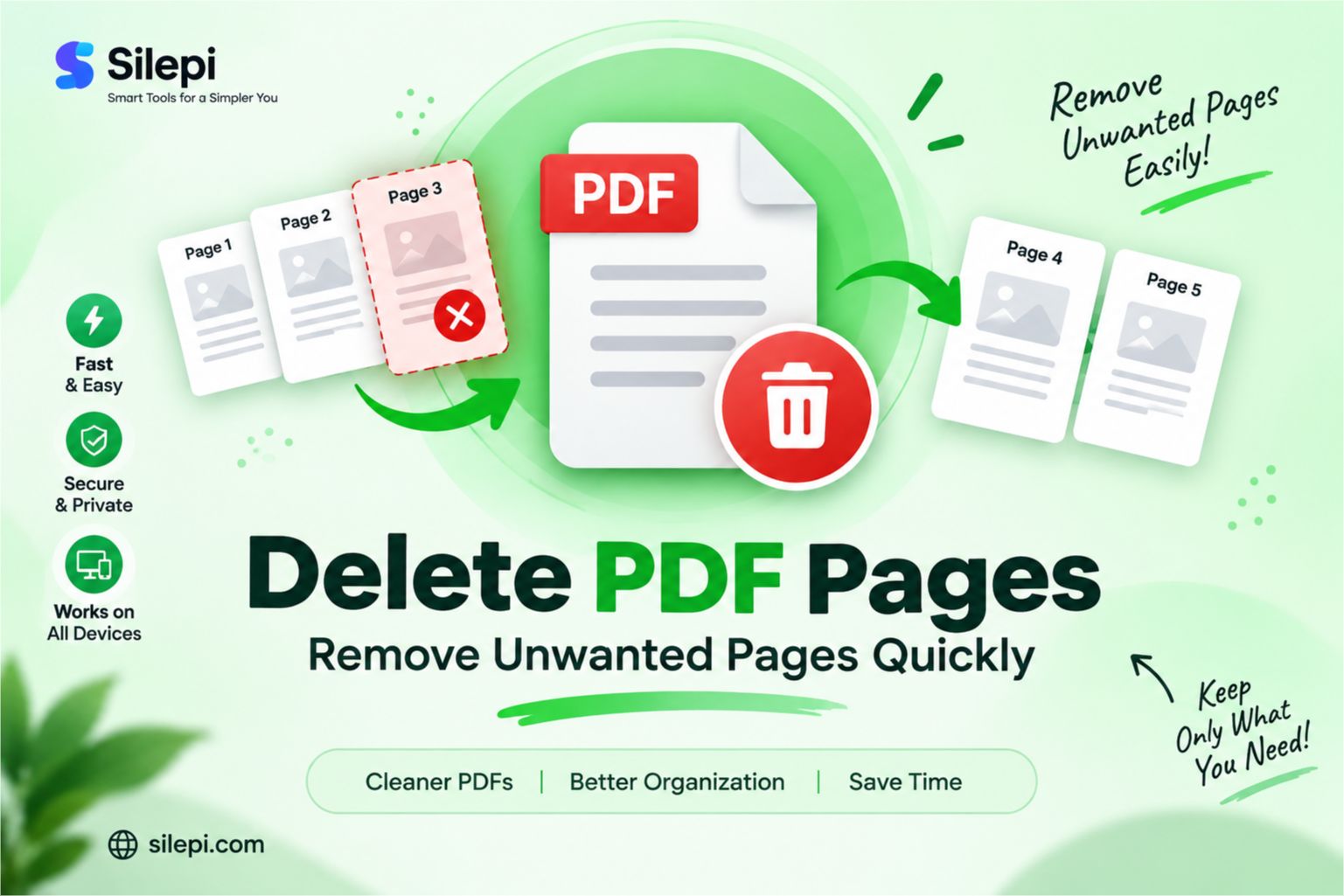
Delete PDF Pages Online – Remove Unwanted Pages Quickly
Have a PDF with pages you no longer need? You can delete PDF pages online and create a cleaner document without editing the entire file.
Whether you want to remove an unwanted page, a blank page, or several unnecessary pages, an online PDF page remover can make the process much easier.
What Is a PDF Page Remover?
A PDF page remover is an online tool that lets you remove selected pages from a PDF document.
This can be useful when a PDF contains extra pages that are not required for sharing, submitting, printing or storing the document.
Delete PDF Pages Online
If you need to remove pages from a PDF, you can use the Silepi PDF Toolkit below.
PDF Toolkit
Merge, split, rotate, reorder, delete pages and create PDF from images.
Select your PDF and use the available page management options to remove the pages you do not need.
Why Remove Pages from a PDF?
PDF documents can sometimes contain unnecessary or duplicate pages. Removing those pages can make the final document more organized and easier to use.
- Remove unwanted PDF pages
- Delete blank pages
- Remove duplicate pages
- Clean up a PDF before sharing
- Reduce unnecessary document pages
- Prepare a PDF for submission
How to Delete Pages from a PDF
The process of removing pages from a PDF is generally straightforward.
- Open the PDF page management tool.
- Select the PDF file you want to edit.
- View the pages in the document.
- Select the pages you want to remove.
- Apply the delete or remove option.
- Save the resulting PDF.
Always review the final document before sharing or submitting it to make sure the required pages are still included.
Remove Unwanted Pages from PDF
Sometimes a PDF contains pages that are no longer relevant. For example, an old cover page, duplicate document, extra attachment or unnecessary information may have been included in the original PDF.
Instead of recreating the entire document, you can remove the unwanted pages and keep the remaining content together in a single PDF.
Delete Blank Pages from PDF
Blank pages can occasionally appear in documents after scanning, converting or combining files. If a blank page is not required, removing it can make the final PDF cleaner.
Before deleting a blank-looking page, check that it does not contain important information such as a signature, form field or other content that may not be immediately visible.
Remove Multiple PDF Pages
You may not always need to remove just one page. A long document can contain several pages that are unnecessary for your particular purpose.
A PDF page management tool can make it easier to select the pages you want to remove rather than recreating the entire document from the beginning.
Delete PDF Pages on Mobile
If the PDF tool supports mobile browsers, you can manage PDF pages directly from a smartphone or tablet.
This can be useful when you receive a PDF on your phone and need to remove unnecessary pages before sharing or submitting the document.
When Should You Remove a PDF Page?
Removing a page can be useful in several situations, including:
- A PDF contains an unnecessary cover page
- A duplicate page was added accidentally
- A blank page appears in the document
- You need to share only selected parts of a document
- An extra attachment was included in the PDF
- You want to organize a combined PDF
Delete PDF Pages Before Sharing
Before sending a PDF to someone else, it can be useful to review the complete document and remove pages that are not relevant to the recipient.
This can help keep the document focused and avoid accidentally sharing unnecessary information.
More PDF Tools in One Place
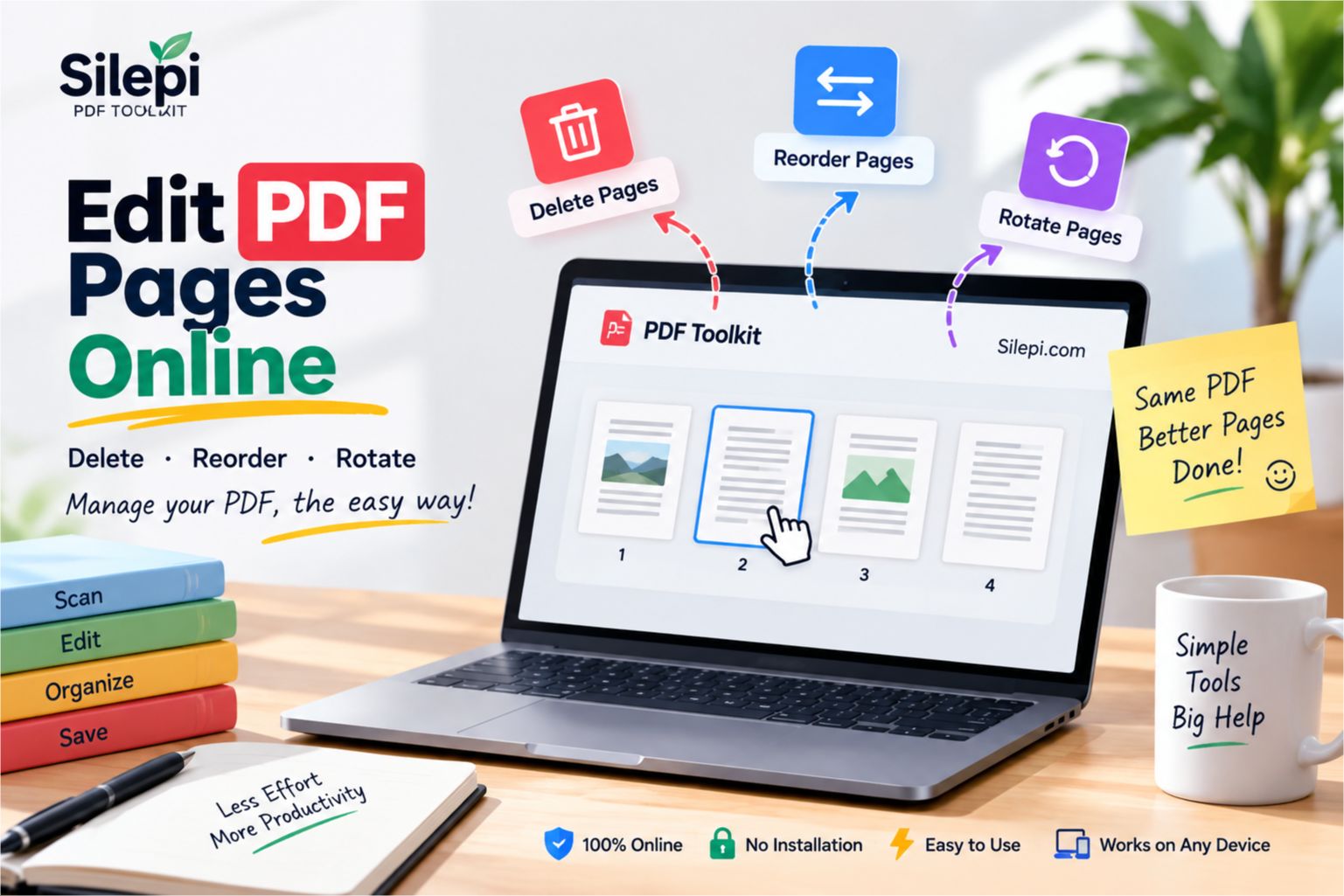
Deleting pages is only one of the common PDF tasks. You may also need to merge PDF files, split documents, rotate pages or manage individual PDF pages.
For more PDF-related tools, visit the
Silepi PDF Toolkit.
It provides access to multiple PDF utilities from one place.
Is It Better to Delete or Split PDF Pages?
It depends on what you want to achieve.
If you want to permanently leave certain pages out of the resulting document, deleting those pages can be appropriate. If you want to create separate documents from different sections of a PDF, splitting the PDF may be more suitable.
Frequently Asked Questions
How can I delete PDF pages online?
You can use an online PDF page management tool to select and remove unwanted pages from a PDF, then save the resulting document.
Can I remove multiple pages from a PDF?
Yes, depending on the tool, you can select multiple pages and remove them from the document.
Can I delete a blank page from a PDF?
Yes. If the blank page is not required, it can be removed using a PDF page management tool.
Can I remove pages from a PDF on my phone?
If the PDF tool supports mobile browsers, you can use it from your smartphone or tablet to manage PDF pages.
Can I remove unwanted pages without recreating the PDF?
Yes. A PDF page remover can allow you to remove selected pages while keeping the remaining pages together in the document.
What should I check after deleting PDF pages?
Review the final PDF to make sure the correct pages were removed and that all required content is still present.
Delete PDF Pages Quickly with Silepi
When a PDF contains unnecessary, duplicate or blank pages, you do not always need to recreate the entire document. An online PDF page remover can make it easier to remove selected pages and prepare a cleaner document.
Use the Silepi PDF Toolkit above to manage your PDF, and explore the Silepi PDF Toolkit for other PDF-related tasks.
Leave a Reply